Intro to The Sims FreePlay
Thank you for printing this page from www.SuperCheats.com.
Remember to come back to check for updates to this guide and much more content for The Sims FreePlay
Follow this guide to hear about updates

Last Updated:
Introducing The Sims for iOS -- The Sims FreePlay
The release of The Sims FreePlay as a "Freemium" title offers gamers the option to play the game using real-world money to speed things up, or their time to play without spending money.
The initial release of the game included a fully-playable world but was naturally something of a laboratory for the game developers, who worked out the kinks and over the course of the first year of the game's existence fine-tuned elements like the wage amount each Sim Job earned and the amount of XP they each earned to find a fine balance that allowed for challenging play without making it all too easy - or too hard.
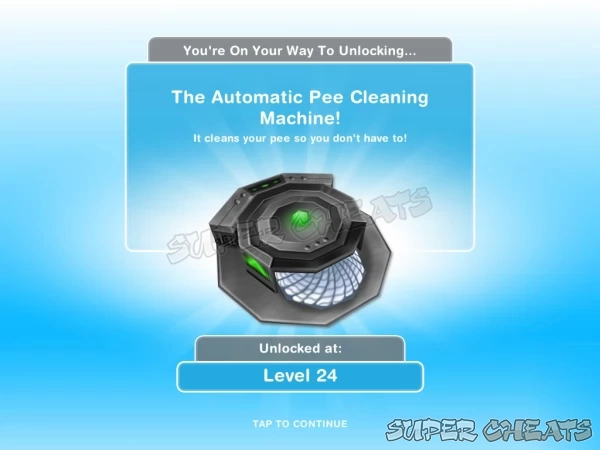
As a game, unexpected objects like the Automatic Pee Cleaning Machine help to illustrate why this is so awesome a Freemium Video Game
Once they found that sweet spot and brought the game into balance, the next phase for development was to begin expanding the content in the game, adding additional Housing, businesses, industries, and the like, but they did not stop there!
One of the important elements that they wanted to add to the game was a social networking aspect, and this they have done in several ways: the game allows for you to add real-world friends and their Sims FreePlay Towns, and it has a mechanism (via The Party Boat) for you to share news of your accomplishments via social networks like Facebook.
The social networking components of the game are divided between the traditional elements of being able to share news or Events with your friends via Facebook, and the other half is being able to visit the Towns of your friends (who play the game) via The Party Boat. But more on this later.
The integration of FreePlay with social networking, and the addition of new content that has helped to keep the game fresh and interesting has also added to the complexity and challenge level to the point that having access to a guide that includes both walkthrough and reference resources is an important requirement - and that brings us to the SuperCheats Unofficial Guide to The Sims FreePlay! Enjoy!
Anything missing from this guide?
ASK A QUESTION for The Sims FreePlay
Comments for Intro to The Sims FreePlay
Add a comment
Please log in above or sign up for free to post commentsTable of ContentsClose
- Introduction
- A Look at Cheats and a Warning
- Gamecenter Achievements
- Sim Stats 4-1-1
- Content Expansion Overview
- Negative Status Notifications
- Courtesy Houses / Lots
- The Town Map
- What's New?
- Top 10 aging actions
- Understanding the Mission Queue
- Ancient Goddess
- Houses
- Baby Guide
- Grand Garages
- Strategically Important
- Walkthrough
- Events and Quests
- Social Quests
- Hobbies
- Professions
- Business
- Industry
- Community Lots
- Reference
Guide Updates
Get notified of updates to this guide
Many of our guides get updated with additional information. To get an email when this guide is updated click below.
 Join us on Discord
Click to close


What are some ceats to get more money and other
I love this game!!!!!!!!!!!!!!!!!!! C:
Hi I currently started a over a new game sims freeplay game; Can Someone Please tell Me how to Activate store setting in the igame it tells me because when I Click On the Shop Icn( trolly) it tells me connecting to server & ten & then dialogur box appears telling me; can't get into store internet/in-game store; please help
I'm trying to get past the quest to use barbeque in the park. Is there more that I have to do before I go there? I'm stuck. Please help me.
I'm trying to get past the quest to use barbeque in the park. Is there more that I have to do before I go there? I'm stuck. Please help.
How do i practice auctioneering using a neighbors auction podium when their nothing there? What should i do?!
How do you practice a a speech in a neighbors mirror
I can't seem to find out how to make my baby's to toddler I don't have the option to bake a cake its grey what do I do I'm so confused
Berty
I love this game but I am stuck! I am on level 16, have several married couples and 2babies. My problem is that I don't know how to go back to lower levels to complete quests, my babies ars gonna be babies forever! Help. I also have the mysterious island which also has lower levels. Thank You kindly
You don't have to go back to lower levels, the waiting quests will just come up as you finish the ones that you are currently on.
How can I beat this Diving simultaneously
Best game ever
What does the guy that lookes like he is dancing do on their happiness meter for?
It's telling me to build the children's store then when I press build it says the sorcerous supply is under constriction, I don't see the store in the town at all??
How do you skip the tutorial at the beginning of the game
The task kick the bins over !i donnowow i ll do it
I was gone so long that it reset into the tutorial but I still have all my progress and Simms and stuff, but it wants me to go to the wardrobe and the sim I'm on doesn't have one. It won't let me switch sims unless I go to the party boat and send a sim to a town, then come back home. But the sim with the wardrobe is housebound, because I can't change. There is no skip feature and I'm getting pretty irritated, any help??
I have had my sims go to other homes and read the biography, using different sims and can't seem to make it work. Any help is appreciated
I don't get how to get the fashion studio from promotions R US
How do you play on pc
I deleted my sims after level 10 because of a cheat and in upset
If you can't get 2 of your sims past the best friend stage you need to be on level 6 and start the quest where you can get your sims to marry
Ok so I know this is stupider but can someone tell me when you buy something from the R'S store were do you find it at I need to know thank you
In your inventory
Yeah I don't know what a kitchen benchtop is either
How do you get lifestyle points and money besides working?
How do you get a baby to be a toddler?
I don't know how to find a friend at the town hall map or get back to my house it won't let me PLEAS some one help me.
What is a kitchen bench top
* To make two sims past best friends and to open the romantic options you have to complete the objective for level 9 I think it was that says "Rich Lather" so go to a shower and choose rich lather, then go to any sim you are best friends with and the pink romantic options should be there.
*To inspire a sim you have to max our their needs. So have them use the toilet, wash their hands, have a snack, dance, and call their mom from a phone and you should be set.
*To move the coffee machine go into buy mode you may have to pull out the counter to the select just the coffee maker first but once you have it then put it back on the counter and move it arround while zoomed in to make sure you can see the pot.
*To make your sims meet, go to either house. Then open sim tracker and use the whistle, your other sim should pop over!
*If you cant add a third sim, maybe you are not far enough level wise? Sorry thats all I can think of
hope ive been of help guys
I can answer some of your questions. The highest level in friendship is best friends so I can't go any farther than that. In order to turn your coffee machine, simply tap on the furniture icon, and tap on the coffee machine that you want to move. Then you will see and arrow that means to move it. To make a sim be funny you have to tap on one of the sims and you will see an icon that says be funny. simply tap on it, and your sims will do it. Any other questons, just ask!!!
Two of my sims are best friends and no matter how much I make them compliment each other or any other positive emotion there friendship never gets any higher. What should I do?