- Games
- Guides
- Complete Guide to Monopoly GO!Blue Prince Walktrough and GuidesRise of Kingdoms Tips and GuideInfinite Craft Recipe Guide
- Robux GuideWuthering Waves walkthrough and guideRoblox Arsenal GuidesPalworld Walkthough Guide
- The Walking Dead: Survivors Beginners ..Ravenlock WalkthroughWarzone 2 GuidesHogwarts Legacy Walkthrough and Guide
- Latest
- More
- General ForumsChat and have fun Video Game ForumsFind friend, get help Achievements & Trophies'chieve lists and hints to help
- Pokémon HubFind it all PokédexAll the stats ModsMods and and-ons
- Action Replay CodesAR Codes and cheats GameShark CodesGS Codes and cheats CodeBreaker CodesCB Codes and cheats
Submit Your Stuff· Send in your cheats, hints and codes
· Need help? Ask a question here Help a gamer Can you provide the answers for fellow gamers questions- Forums
- Pokemon
Log into your account here:
Not registered? Sign Up for free
Registration allows you to keep track of all your content and comments, save bookmarks, and post in all our forums.
-
PlayStation 5
PlayStation 4
PlayStation 3
PlayStation 2
PlayStation
PS Vita
PSP
-
Xbox Series X
Xbox One
Xbox 360
Xbox
-
Switch
Wii
Wii U
3 DS
Nintendo DS
Nintendo 64
Gameboy Adv.
Gameboy
GameCube
SNES
NES
-
Roblox
iPhone
Android
PC
FaceBook
Mac
Dreamcast
Arcade
- General Forums
- Video Game Forums
- Teams Forums
- Pokémon Hub
- Pokédex
- Technical FAQ's
- Achievements & Trophies
- Hall of Fame
- Enter a game name to find below:
-
- Or click here to search for specific content.
- All Our Full Guides More Game Walkthroughs Cheats, Hints and Codes Questions and Answers Recent Guide Updates
- Complete Guide to Monopoly GO!Blue Prince Walktrough and GuidesRise of Kingdoms Tips and GuideInfinite Craft Recipe Guide
- Robux GuideWuthering Waves walkthrough and guideRoblox Arsenal GuidesPalworld Walkthough Guide
- The Walking Dead: Survivors Beginners ..Ravenlock WalkthroughWarzone 2 GuidesHogwarts Legacy Walkthrough and Guide

Thank you for printing this page from www.SuperCheats.com.
Remember to come back to check for updates to this how to and much more content for Windows 7.
How to Change your Computer Name
Published by SuperCheats Staff on Nov 1st 2013
 Changing your computer name helps the administrators of the network to distinguish different computers. Here’s how you can change your Computer name:
How to Change your Computer Name
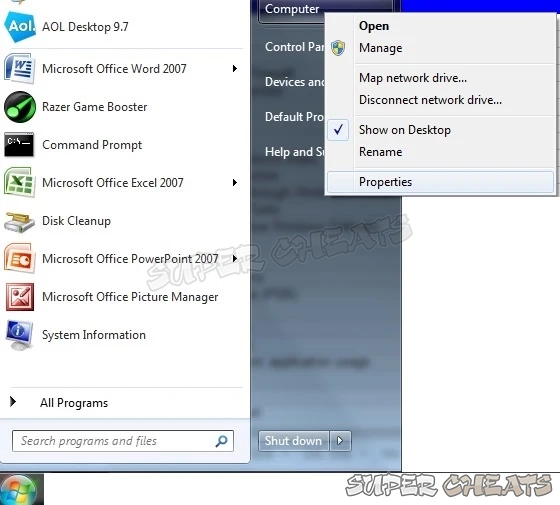
- Click the Windows Button located on the lower left of the screen then right-click Computer then click Properties.
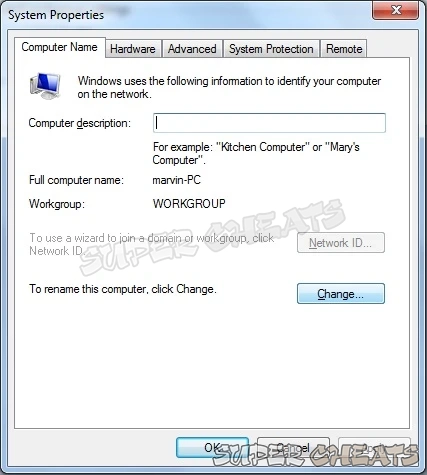
- Click Change Settings
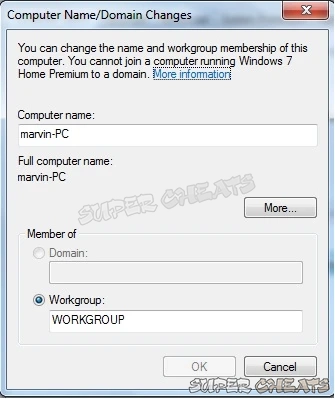
- Click Change
- Enter your unique Computer Name on the Textbox and click OK. Your computer name should be changed by now.

Comments for "How to Change your Computer Name"
Table of Contents
- Back up your Files
- Disable Visual Effects
- Creating a User Account
- How to Clear Temp Folder
- Turn High Contrast Theme on and off
- Uninstall Internet Explorer 10
- Disable Aero Theme
- Add Run in the Start Menu
- Disable Caps Lock
- Viewing and Making your Files Hidden
- Recover from Sleep Mode
- Connect to a projector
- Set up Parental Controls
- Snipping Tool
- Sticky Notes
- How to Change your Computer Name
- Create a Super Hidden File or Folder
- Using Split Screen
- Enable/Disable Hidden Administrator
- Run old programs in Windows 7
- Determine your Windows 7 if it’s 64 bit or 32 bit
-
 Control Panel
-
General Tips
-
Hardware
-
Networking
-
Security
-
Maintenance and Troubleshooting
Ask a question
Do you have a question about Windows 7?
Click here to post it.
Click here to post it.
Latest Help Articles
Windows 7 came with two versions which are the 32 bit and 64 bit. Both have different versions. One of the most comm..
Some programs won’t run because they are only meant to run on older Operating Systems or has compatibility issues. ..
Administrators have the access to every file to the computer. Hiding the administrator can be done with few simple st..

