Game Launcher
The Sims 3 Walkthrough and Guide
The Sims 3 Guide - Mod Guide
Game Launcher
Introduction
The Sims 3 game launcher acts as your central hub for most of what goes on in the game. Much like the game’s official website, here you can see many of the latest official items available, ones that you have downloaded, and movies and screenshots that you have captured during the game.
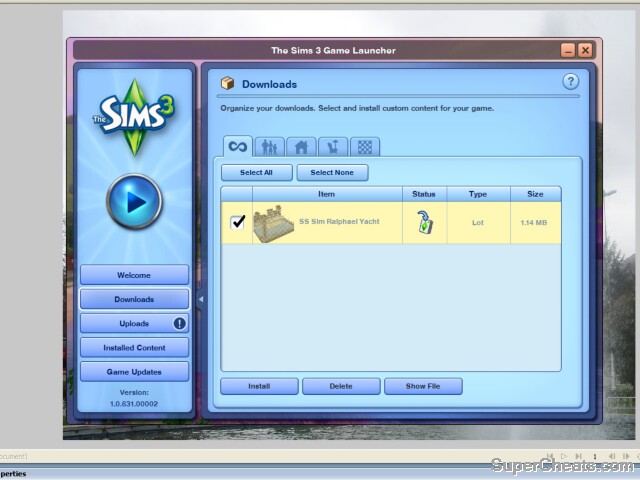 The game launcher houses all your Sims 3 downloads (the official ones!) |
Recording Video and Screenshots
The Sims 3 includes a powerful video recording suite, and a more ordinary image capture facility. To capture video, press V during play or click the camera icon. You can in fact activate the capture while in open play and then go into the Create a Sim or Edit Town modes with the movie still recording – so there is a lot of possibilities open to you. Ensure that you peruse the Video Capture options menu to ensure that the video will be suitably compressed and that you are able to record for long enough.
Screenshots are more simple, and you can capture them with or without the game’s interface overlaid.
When you have a collection of assets taken from the game, they can then be accessed from the Sims 3 Game Launcher, from the Sims 3 folder, or on TheSims3.com website, when creating a story or video.
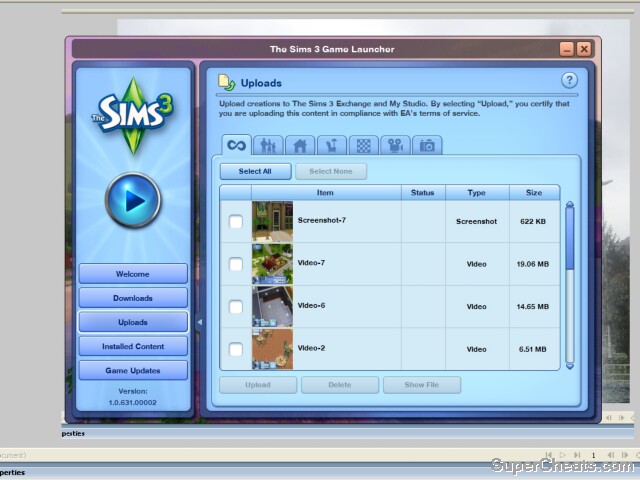 Use the Game Launcher to view and upload all your recorded video and images from The Sims 3. |
Installing Official Items
Items will install automatically once downloaded from TheSims3.com – or when double-clicked if saved to a location on your computer. The Sims 3 Game Launcher will open and a progress bar will be shown. Once it completes, the item is then in the game and ready for use!
More Sims 3 on SuperCheats.com


Can somebody help me? I bypassed my launcher a few months ago because I got sick of having to click the play button; but now I can't find the launcher itself which I need so I can run updates and so on! Please help!
does anybody know where i can get a custom launcher TO RUN THE GAME?
i need a custom launcher because my launcher is missing TS3.exe wont run for me
i am very confused. i looked up soemthing WAY different than this. very confused please help me!!!
where can you find the sims3 game launcher
Cool!
I've always wondered where my Sims 3 videos and photos have gone... And now I know!😃👍
I officially quit! been tryin for three weeks to get my games to work. I'm done!
aahhh
I have been uploading from the sims 3 game launcher and it did it by firefox browser, but when I uninstalled the firefox browser and have I have Google browser it will not upload my lots etc or sign me in. It says there is a server error, can anyone help me so that it will use Google as I do not really want firefox/
I am able to log into "Origin", but then I get to the game Launcher I'm asked to sign in again. I used the same ID and Password... the system says the email address and password does not match.
go in and change your password for origin and for sim3 site make them the same will work then
How to download the sims 3 game launcher????????????????????
at least idc about expansion packs cause I know that they may not work in my computer
i have to install the sims 3 but i cant to update !!!!!!!!!!!
i have uninstalled my sims3 university 3 times now and everytime i think it is going to work then it stops and the sims3 launcher has stopped working. What is going on
[b]SO HERE'S WHATS GOING ON I GO TO LOCAL DISK C, THEN PROGRAM FILES (X86) AND ELECTRONIC ARTS AND THEN TS3.exe AND ALL THAT BUT WHEN I GO TO CLICK ON IT IT ONLY LET'S ME PLAY THE BASE GAME AND I HAVE ALL THE EXPANSION PACKS AND ONE STUFF PACK (i had to do this because every time i try to click the launcher regularly it say 'the sims 3 game launcher has stopped working' i have unistalled the game 3 TIMES!!!!!!) PPPPPLLLLEEEEAAAASSSSEEE HELP MMMEEEE!!!!!!!!
how to downlload it