Galactic Civilizations II: Dread Lords Hints-and-Tips (PC)                                                                                Network Sites :: LatestScreens.com | GamingUpdate.com | Juegoz.com

Box Image

Galactic Civilizations II: Dread Lords Hints and Tips

PC Index | Game Index
Add this game to: My Collection | Currently Playing | WishList


More for this game on Super Cheats...
Cheats | Achievements | Submitted Cheats | Submitted Hints | GS Codes | AR Codes
Walkthroughs | Questions | ScreenShots | Wallpapers | User Submitted Reviews | Forums | Submit Stuff


Latest Videos

-- Video Loading --


Printer Friendly

Sort Page

Watch / Alerts

Add Game

Tell / Share
Sort page by:
Add this game to: My Collection | Currently Playing | WishList
Your name: Friends Email:
Search this page:  

Showing 1 to 1 of 1 - More Pages 1 | Show All

Game Help

Unrated
Verified by: unverified
Bogus Report:

Here are a few hints to help you in your game:-

You can choose from ten civilizations, each with it's own unique
Strengths and weaknesses. Or, if you prefer, you can design your
Own from scratch.
Once you have chosen which civilization to lead, you will start with
A homeworld, a colony ship, and a survey ship. Your colony ship
Can be used to colonize new worlds to expand your population,
Influence, and military might. Every planet in the galaxy is unique
But some are better than others. Making sure your civilization has
The best planets is the key to your success.
When you start a new game you will need to set up the galaxy in
Terms of size, who you are playing as, and who you are going to
Go up against.
The Galaxy Setup screen is your first set of choices for what sort
Of game you’d like to play.
Tiny, Small, Medium, Large, Huge, and Gigantic set
The map size, but don’t necessarily affect the number of stars and
Planets, which are set separately on the Galaxy Settings at the
Bottom of the screen. If you prefer to use a specific map, use the
Drop down menu to choose a pre-made custom map.
The Normal setting will proceed with the default victory
Conditions. Otherwise, you can choose from among various
Scenarios in this drop down menu. The text for each scenario
Details the rules and victory conditions that will apply. Note that
Some settings will be disabled if you choose to play a scenario.
Habitable Planets, Number of Planets,
Number of Stars, and Anomalies can be set to Rare, Uncommon,
Occasional, Common, or Abundant.
Star Density sets stars in Loose Clusters, Tight Clusters, or
Scattered. This controls how far apart different stars are from
10
One another and whether they’re in groups or spread out evenly.
The distance between the stars can determine how quickly you
Interact with other civilizations as well as provide different types of
Strategies for warfare, influence, and diplomacy.
Technology Rate can be set to Very Slow, Slow, Normal, Fast, or
Very Fast, which will determine the base price for each technology.
This screen allows you to choose which race you’ll play by clicking
On the thumbnail picture of one of the ten preset races or by
Clicking on the mesh model to create your own race. You can
Read specifics for each race in the main window. To the right of
The race’s image is it's name, the name of it's homeworld, and
The symbol that will represent it in the game. Beneath that is
The race’s default political party and the bonus it confers. Along
The bottom of the screen, from left to right, are the race’s innate
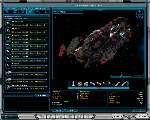
Abilities, it's starting technologies, and a 3D model of it's ship style.
You can edit one of the preset races or create your own species by
Clicking the Edit button under the image in the main screen. This
Will take you to the Customize Race screen.
Use the directional buttons
Beneath the images to choose
Your race’s picture and symbol. In
The text boxes, you can enter a
New race name, leader name, and
Homeworld name. The Overview
Tab displays the same information
As the main window. The Techs
Tab will let you spend up to 200
Points on your race’s starting
Technologies. The Abilities tab will
Let you spend 10 points on special racial abilities. The Political tab
Lets you select your race’s starting political party, each of which
Offers a unique bonus. The Appearance tab lets you select your
Ship style, ship colors, and race colors, which are used in the
Interface. Note that some options will be disabled for preset races.
Each race has different abilities and you can choose your own if
You design a custom race. The abilities include:
Courage gives a bonus to the attack value of your ships when
You’re fighting against an opponent who has a higher score than
You. The degree of the advantage is based on how far ahead your
Opponent is.
Creativity will lead to your race randomly discovering technologies
From time to time.
Defense improves your ship’s rating for all three types of
Defenses.
Diplomacy adds to your diplomatic advantage when dealing with
Other civilizations.
Economics adds a bonus to your tax revenue.
Espionage adds to the effectiveness of your espionage spending.
Hit Points adds to the hit points of all your ships.
Influence adds a bonus to the production of Influence Points on
Each of your colonies.
Loyalty reduces the amount of other civilizations influence applied
To your colonies, thereby reducing the chance that they’ll rebel.
Luck is a mysterious under-the-hood advantage that can help
You at various points throughout the game. It can improve the
Chances of a critical hit in combat or reduce the odds of getting a
Negative random event.
Military Production adds to the number of shields you produce on
Each colony, which are used to build ships.
Morale adds to the morale rating for each of your colonies, making
It less likely that you’ll suffer the effects of low morale.
Planet Quality raises the base number of usable tiles available after you colonize a planet.
Population Growth adds to the population growth rate on all of
Your planets.
Range lets your ships stray farther from planets and Starbases.
Repair allows ships to repair themselves faster than normal.
Research increases the amount of research your colonies produce.
Sensors extends the range your ships can see by a given number
Of parsecs (tiles on the map).
Social Production adds to the number of “hammers” you produce
On each colony, which are used to build projects.
Soldiering gives you a bonus in ground combat.
Speed adds to the number of parsecs your ships can move each
Turn.
Trade increases the amount of money you receive from trade
Routes with other planets.
Trade Routes increases the number of trade routes your
Civilization can maintain.
Weapons improves your ship’s attack rating for all three types of weapons.
There are 8 political parties that players
Can choose from. Each one has it's own
Advantages and disadvantages. When
Your political party is in control of the
Galactic senate, you gain the advantage
Of it.
However, if your political party loses
The election, then whatever political
Party gains control applies it's strengths as your weaknesses. For
Example, if you play as the Pacificsts and lose the election to
The Federalists, your civilization will take a -20% to it's economy
Because the Federalist strength is 20% to economy.
It is important that you maintain control of the senate. By default,
Your government starts out as an Imperial form of government
(everything run from the home planet) so there is no concern with
Popular opinion. But as you research other forms of government
And upgrade to them, it becomes increasingly difficult.
Players can also choose the color of the Galactic Civilizations user
Interface, the color of ships, the style of ships and more.
TIP: If you customize your color, try to pick your race color to
Be different from any other race. There are 16.8 million different
Colors to choose from. For instance, if you choose blue as your
Color, you may find it difficult to differentiate your color from the
Terrans. If you customize your color, find a unique one that will
Stand out from the rest.
Use the Opponents setting at the bottom of the screen to
Determine the total number of races – the number includes you
– in your game. Click on a race’s picture to highlight it and use
The enable/disable button to set whether it will be included.
You can also set each race’s Intelligence, selecting Fool, Beginner,
Sub-Normal, Normal, Bright, Intelligent, Genius, or Incredible.
At the Intelligent setting, the AI will function with a fully enabled
AI. For everything below Intelligent, certain aspects of the AI will
Be turned off or toned down. For instance, at lower levels, the AI
Will earn less tax revenue. For everything above Intelligent, the
AI will get bonuses that the human player doesn’t have, mainly
In terms of a tax revenue bonus. You can also set your beginning
Relations with each race.
Alternatively, you can use the Difficulty setting at the bottom of
The screen to select Cakewalk, Easy, Simple, Beginner, Normal,
Challenging, Tough, Painful, Crippling, Masochistic, Obscene, or
Suicidal. These settings will override the individual settings for
Each opponent’s Intelligence.
Click the Next button to begin your game.
The galaxy is composed of a number of sectors determined by
The size you chose on the Galaxy Setup screen. Each sector is
Divided into a 15x15 grid of parsecs. A parsec may contain a sun,
A planet, an anomaly, a resource, a Starbase and/or ships.
Stars may be orbited by up to five planets, each rated from
Class 0 to class 26 (or higher when you’ve researched certain
Technologies). The greater the rating, the more habitable the
Planet. The class also indicates the number of tiles that will be
Available if you colonize the planet.
Anomalies can be investigated by ships with a survey module,
Such as the survey ship that each civilization gets as it's flagship
When a game begins. Some anomalies will add permanent
Bonuses to your empires. Some might teleport your ship across
15
The galaxy. Others will simply be useless debris.
Resources are colored polygons that give your civilization a
Bonus if you build Starbases on them. Starbases can also be
Built to defend certain areas, extend a civilization’s influence, and
Extend the range of it's ships. Ships are used to explore and fight.
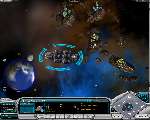
The galaxy is interacted with via the main screen of Galactic Civilazions.
The main screen can be broken down into 3 primary components:
The top border which includes the options menu button, the
Currently selected sector display and the current date.
The main map itself that displays planets, ships, stars, etc.
The control panel at the bottom which displays information
About your civilization in general (on the left), the currently
Selected object (in the middle) and the mini-map (on the
Right).
Controlling the map with the mouse
Players can interact with the map through the keyboard and
Mouse -- mostly the mouse. The mouse is used in the following
Way:
LEFT-BUTTON CLICK. Selects the object that the mouse is
Currently over.
RIGHT-BUTTON CLICK. Sends the currently selected object
To that location as it's destination (if applicable).
MIDDLE-BUTTON CLICK. Controls the game camera. By
Holding down the middle mouse button players can rotate
The map. If the mouse has mouse-wheel, the user can zoom
In and out of the map in this way. The middle mouse button
Also enables players to scroll on a zoomed-in mini-map
Display.
The left button on the mouse can also enable players to grab the
Screen and slide it around which can make navigating around the
Map much easier.
Holding down the SHIFT key while dragging the mouse can select
Multiple objects.
The main map
The largest objects on the main map are stars. Surrounding stars
Are planets (up to 5). If a planet is colonized, it will have the
Controlling civilization’s icon on the bottom left.
Colonies have a number of different symbols used to represent
Activity:
17
A hammer icon indicates that there are empty tiles that can
Hold projects; a bright hammer indicates a project is being
Developed and a darkened hammer indicates that Social
Production is idle for that colony.
A Star Port icon indicates the presence of a Star Port; a blue
Icon indicates a ship is being built and a yellow icon indicates
That Military Production is idle for that colony.
A shield means that a ship is in orbit and the planet is
Therefore defended (ships must be defeated before troop
Transports can attempt an invasion).
An unhappy face indicates an approval rating below 30%.
A pirate flag indicates an opponent’s influence is strong
Enough to cause a planet to rebel.
A colored line on the map represents that civilization’s influence.
Influence is not the same as the borders of one’s
Civilization. In Galactic Civilizations II, borders go only as far as
Ones planet. If alien planets fall under your influence, it means
That your influence on that planet is greater than the native
Influence. If that influence reaches 4X the native influence, it will
Likely revolt and join your civilization.
Influence is important for the following reasons:
It determines how many votes you get in the United Planets.
Tourism is based on the total population of the galaxy times
Your percentage influence of the galaxy.
You can win planets from other civilizations without firing a
Shot.
When a ship is selected, a light grey line on the map represents
The currently selected ship’s range. Ships can extend their range
Through more advanced life support systems or by building star
Bases which will extend your range.
Using the +/- keys or the mouse-wheel the map itself can be
Zoomed out on. If you zoom back far enough, the 3D graphics will
Be replaced with 2D icons:
Uninhabited planets are circles. The lower the class and
Therefore less inhabitable the planet, the more hollow the
Circle. Higher classes are more solid circles.
Ships and Starbases are indicated by icons and rally points
Are indicated by arrows.
Anomalies are indicated by atomic symbols.
Resources are indicated by box icons.
Important messages will trigger an alert box that drops down the
Right side of the screen. Clicking on the alert box will bring you to
The relevant screen or location in the game.
The Control Panel
The box in the lower left of the screen displays the technology
You’re currently researching, along with the time it will take at
Your current research point production. Below that is the average
Approval rating for all of your population.
To the right of this display is a vertical bar with a colored segment
For each civilization. This displays each civilization’s galactic
Power, which is an amalgam of their total influence, total military
Power, and total tax revenue.
Below that is your total population and the amount of money
In your empire’s treasury. If your net income is positive, the
Treasury amount is displayed in green. If your net income is
Negative, the treasury amount is displayed in yellow.
If an empty parsec is selected, the bottom center display will
Show one of six graphs, tracking players’ comparative standings
In population, military, economy, research, influence, or
Industry.
The population graph compares the total population of all that
Civilization’s colonies. The military graph compares the value of
All that civilization’s ships with an attack rating (the exact formula
19
Is attack rating + defense rating + hit points/10). The economy
Graph compares tax revenue. The research graph totals each
Civilization’s research points per turn. The influence graph ranks
The total influence of all that civilization’s colonies. Finally, the
Industry graph totals up all the manufacturing points from each
Of that civilization’s colonies.
If you select a star, the bottom center display will show the
Number of planets, how many of them are habitable (i.e. Have
A class greater than zero), how many of them are colonized,
And which civilizations live there. For details on the information
Presented when you select a planet or ship, see the later sections
In the manual.
Below the central display are information display buttons.
They are, from left to right:
View Ships/Planets
Research
Domestic Policy
Foreign Policy
The Civilization Manager
And the Ship Yard
The View Ships/Planets display opens a list of planets that can
Be arranged by a number of criteria using the arrow buttons at
The top. You can then click the filters options to display your
Planets (Mine), opponents’ planets (Foreign), uninhabited planets
(Unowned), or all planets (All). You can click the magnifying glass
To perform a search of planets by name or partial name. The list
Displays each planet’s name, class, population, and approval. The
Bars show progress towards any ships or projects being built. A
Shield icon displays whether there are any ships in orbit at that
Planet. Double-click on any planet’s display to jump to it's Colony
Management screen.
To the right of the center display is a minimap. Green lines
Indicate sectors. A grey fog-of-war effect shows which parts of
The galaxy you’ve seen with your sensors. The plus and minus
Buttons to the lower left allow you to zoom the minimap, while
The triangle above the minimap lets you minimize the interface
••••••
20
For a fullscreen view of the galaxy. The legend to the upper
Right of the minimap allows you to select what information is
Displayed. Ships, planets, stars, anomalies, and rally points
Can be toggled on and off. The ownership buttons shows each
Civilization’s influence. Population and industry display each
Colony’s population and manufacturing point as colored spheres
Representing their comparative size. Ships range will shade the
Range of a selected ship, and autopilot will show white lines to the
Destination of any ship with an autopilot command.
Mini-Map button controls:
Show Ships on map
Show planets on map
Show stars on map
Show anomalies
Show rally points
Show influence borders
Show population centers
Show industrial centers
Show auto-pilot
Show selected ship’s range

This is it for now, I'll give more help later, Adios!

Above submission added on: 2nd Aug 2008 | id number: 12914
Author: Subarno Hossain | Verify above submission Tick to add to printer friendly selection.


--- Advertisement ---